Appointment Booking QR Code: A Practical Setup and Testing Guide
Create an appointment booking QR code that opens the correct service, works on mobile and gives customers a clear confirmation and fallback route.
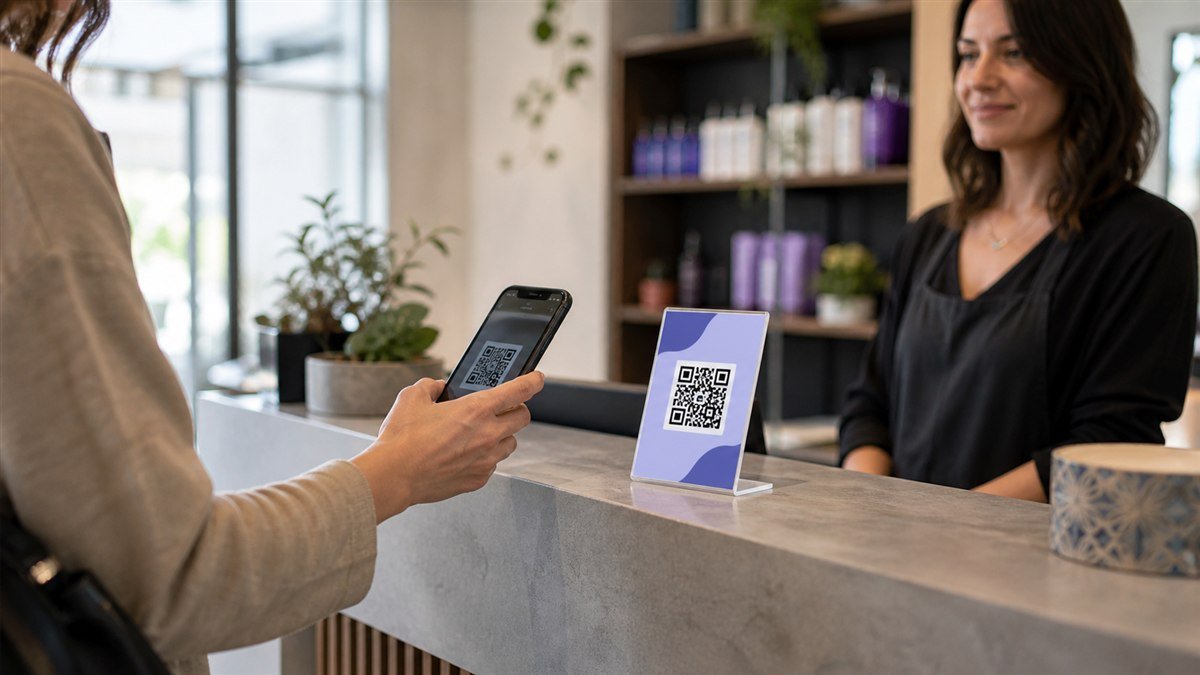
An appointment booking QR code can move a customer from a printed sign, business card or reception desk to an online scheduling page. The QR code does not manage availability by itself. Its job is to open the right public booking destination quickly, while the scheduling system handles services, times, confirmations and changes.
When an appointment booking QR code is useful
This setup works well for salons, tutors, repair services, consultants, fitness studios and other businesses that already have a public booking page. It is less useful when the page is not mobile friendly, requires an employee account or does not show the service promised beside the code. Fix the destination before printing the shortcut.
How to create an appointment booking QR code
- Choose one booking action. Decide whether the customer should choose a service, book a consultation, request a callback or join a class. One focused destination is usually clearer than a homepage with several competing buttons.
- Copy the public scheduling link. Open it in a private browser window. Confirm that it does not expose an administrator dashboard, staff calendar or private customer information.
- Create the code. Paste the final HTTPS link into the URL QR Generator. Customize it carefully, keeping enough contrast and clear space around every edge.
- Add useful context. Use wording such as “Scan to book an appointment” and state the service or location when needed. Print a readable web address or phone number as a fallback.
- Export for the final surface. Choose a high-quality PNG for common digital use or SVG/PDF where the print workflow supports it.
- Complete a test booking. Test the actual customer journey through confirmation, cancellation and rescheduling before publishing the code.
Test the complete booking journey
A successful scan is not the same as a successful appointment. Test from the first camera detection to the final confirmation message. Use a test service or remove the test booking afterward so genuine availability is not blocked.
| Step | Evidence to record | Accept when |
|---|---|---|
| Scan and landing page | Device, connection, destination and load time | The promised booking action is visible without searching |
| Service selection | Service name, duration, price and location | The customer can distinguish the available options |
| Date and time | Timezone, available slots and closure dates | The displayed availability matches the business calendar |
| Customer form | Required fields, labels, errors and privacy notice | Only necessary information is requested and errors are clear |
| Confirmation | On-screen message, email or SMS details | The customer knows the booking status and next step |
| Change or cancellation | Public self-service route and contact fallback | The customer can find a practical way to make a change |
Keep the form short, accessible and respectful
Ask only for information needed to provide the appointment. Clearly identify required fields, label controls and explain validation errors. Do not use placeholder text as the only label. The W3C accessible forms tutorial recommends clear labels and instructions and notes that irrelevant or excessive requests can lead users to abandon a form.
If the booking involves health, legal or other sensitive details, avoid placing private information inside the QR code or public URL. Use a suitable secure scheduling service and obtain professional compliance advice for the business context. LatestQR creates the scan route; it is not a medical-record or appointment-management system.
Where to place a booking QR code
- Business card: link to one stable booking page and leave enough trim space around the QR code.
- Reception desk: position it away from payment equipment and reflective surfaces.
- Shop window: test through glass in daylight and evening light, and show opening hours nearby.
- Printed flyer: match the call to action to the advertised service rather than a generic homepage.
- Email signature: also include a normal clickable booking link for accessibility.
The business-card QR guide covers trim and placement, while the pre-print testing guide explains how to approve the exact final artwork.
Choose a clear design
Use a dark foreground on a light solid panel and keep the quiet zone empty. A modest logo can support recognition, but it should not cover functional modules. Test the branded export rather than assuming error correction will solve every design problem. For practical limits, read how to add a logo safely and the QR color and contrast guide.
Common booking problems and fixes
The QR code opens a staff dashboard
Replace it with the public customer link. Test while signed out and ask someone without staff access to complete a trial booking.
The wrong branch or timezone appears
Create location-specific destinations and label every printed code with the relevant branch. Check daylight-saving and timezone settings inside the scheduling service.
The form is difficult on a phone
Reduce unnecessary fields, use appropriate input types, keep buttons comfortably sized and ensure errors appear next to the relevant control. Offer a telephone or staffed alternative.
The schedule changes after printing
Point the code to a stable page controlled by the business and update availability within the scheduling system. Scan public materials after platform or domain changes.
Customers do not know whether booking worked
Add an explicit confirmation screen and explain when email or SMS confirmation will arrive. Provide a contact route if the message is delayed.
Appointment booking QR code checklist
- The destination is public, HTTPS and specific to the promised service.
- The page works on a small phone and does not require staff access.
- Only necessary customer information is requested.
- Timezone, location, price and duration are understandable.
- Confirmation, cancellation and fallback contact routes have been tested.
- The exact printed or installed code has passed realistic scans.
- Someone owns the link and checks it on a recurring schedule.
Final takeaway
A good appointment booking QR code removes friction without hiding important details. Link directly to the correct public service, test the entire journey, keep the form accessible and give customers a non-QR fallback. Review the destination whenever hours, services, staff or scheduling platforms change.