QR Codes on Invoices and Receipts: A Practical Guide
Use QR codes on invoices and receipts to offer convenient payments, digital copies and helpful support without making the document confusing.
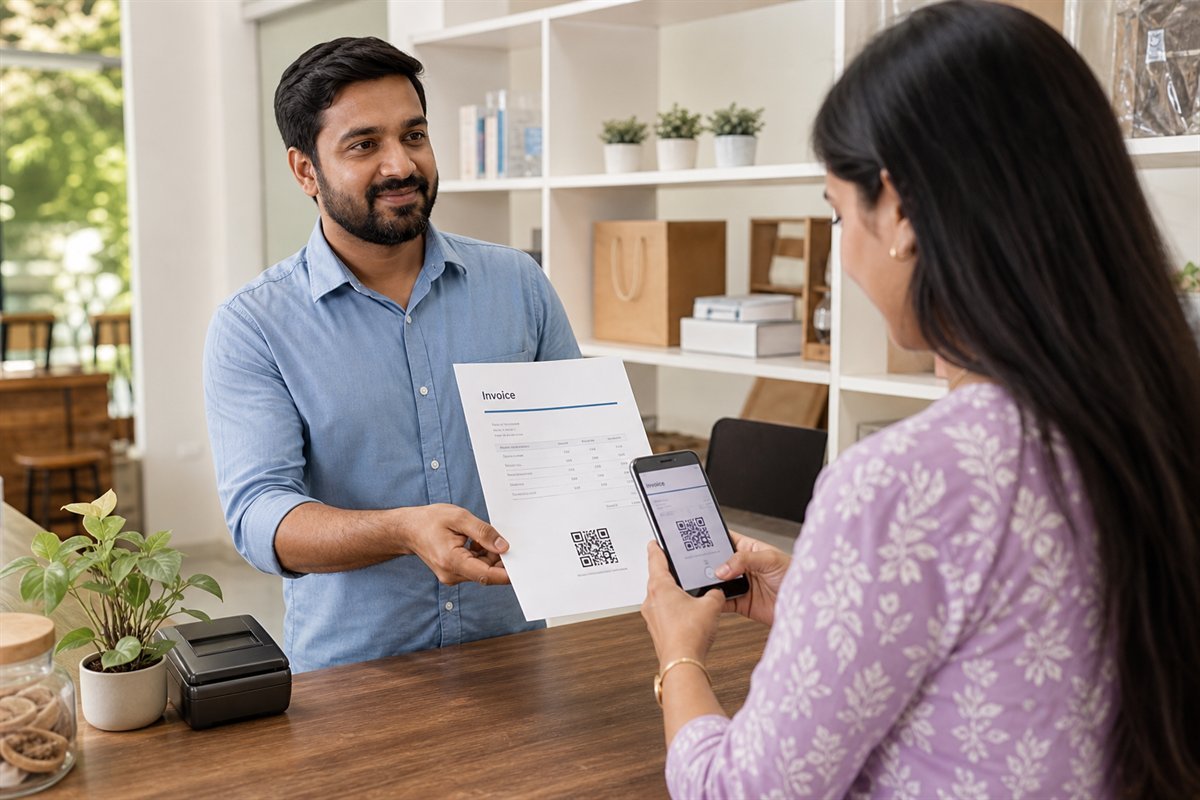
A QR code on an invoice or receipt can save a customer from typing a long payment address, document link or support URL. The useful part is not the square itself. It is the clear, trustworthy next step behind it. A good implementation explains what the scan will do, protects private information and still gives people another way to complete the task.
Choose one clear purpose for the QR code
Start by deciding what the customer should receive after scanning. An invoice QR code might open a payment page, while a receipt QR code might lead to a digital copy, warranty instructions or a feedback form. Avoid placing several unexplained codes beside one another. If more than one action is necessary, use short labels such as “Pay this invoice” and “View product support” so each option is easy to understand.
The destination should match the document. A payment QR code belongs near the amount and payment instructions. A support QR code fits better near the product details or footer. This simple relationship helps a customer understand the code before opening the camera.
Invoice QR code and receipt QR code examples
A freelance designer may place a QR code beside bank transfer instructions so a client can open a secure payment page. A repair shop may add a receipt QR code that opens care instructions and warranty terms for the repaired item. A small retailer may offer a digital receipt link without forcing the customer to create an account.
Create the code step by step
- Publish the final HTTPS destination and open it in a private browser window.
- Choose the appropriate LatestQR tool. Use the URL QR Generator for a public web page, the PDF QR Generator for a public document or the UPI QR Generator for supported payment details.
- Enter only the information required for that action.
- Use a dark QR foreground on a light background and preserve the empty quiet zone.
- Generate the QR code and scan the preview before downloading it.
- Download SVG or PDF for professional print layouts, or PNG for ordinary digital documents.
Write a calm and specific call to action
Labels such as “Scan me” leave the customer guessing. Use language that states the result: “Scan to pay securely,” “Scan to download this receipt” or “Scan for warranty help.” Keep the wording factual. Do not imply that scanning is the only option when a readable URL, account number or support contact is also available.
For a payment code, show the merchant or business name beside it and ask the customer to verify the recipient and amount before confirming. The final payment screen, not the printed code, should be treated as the place to review the transaction.
Protect customer and business information
A QR code is visible to anyone who can see or photograph the document. Do not directly encode a customer name, home address, phone number, email address, tax identifier, full invoice history or private account token. Prefer a secure page that checks authorization before displaying personal records.
If every invoice needs a unique link, use random, unguessable tokens and an appropriate expiry policy. Avoid simple public URLs that increase in order, such as invoice-1001 followed by invoice-1002. Access controls and privacy decisions belong on the destination system; changing the visual style of the QR code does not make private data safer.
Design for paper, printers and real lighting
Invoices are often printed on office printers, while receipts may come from small thermal printers. Fine decoration and pale colours can disappear during printing. Start with a simple black or dark navy code on white. Keep it away from folds, perforations, torn edges and dense tables.
For normal close-range use, a code around 25 to 30 mm wide is a sensible starting point, but the correct size depends on the encoded data, printer, surface and scanning distance. Print at actual size and test the real output. A sharp screen preview cannot reveal low toner, thermal fading or paper glare.
Test the complete customer journey
Scan with at least one Android phone and one iPhone if possible. Test under ordinary shop or office lighting, with mobile data as well as WiFi, and from the angle a customer is likely to use. Confirm that the destination loads quickly, identifies the correct business and explains the next step before requesting sensitive action.
Also test what happens when the link has expired, the invoice is already paid or the document cannot be found. A polite status page with a support route is much better than a blank error screen.
Common problems and simple fixes
The printed code will not scan
Increase its size, restore a clear white border, use stronger contrast and remove a large centre logo. Check whether the printer has blurred or clipped any part of the pattern.
The scan opens the wrong invoice
Stop distributing the document, correct the destination mapping and generate a fresh code. Review how invoice identifiers are assigned before reprinting. Never rely on the visible invoice number alone as access protection.
The payment details are incorrect
Replace the affected invoice and clearly contact the customer through a trusted channel. Ask them to verify the recipient shown by their payment application before confirming. Do not try to correct important payment details with a handwritten note beside an old code.
The link works for staff but not customers
Open it in a private window and on a phone that is not signed into the company account. Update sharing permissions or publish a customer-safe page that does not depend on an internal login.
Important limitations
A static QR code keeps the same embedded value after printing. It cannot repair an incorrect destination, confirm that an invoice was paid or guarantee that a customer reached the intended business. A QR code also does not replace tax, invoicing, accessibility or payment requirements that apply to the organisation.
Printed receipts can fade, links can change and customers may not have a suitable phone or internet connection. Keep essential invoice information readable on the document and provide a normal web address or support contact as an alternative.
Pre-publish checklist
- The label explains exactly what the scan opens.
- The destination uses HTTPS and identifies the correct business.
- No personal or confidential information is directly encoded.
- The code scans from the final printed invoice or receipt.
- The payment recipient and amount can be reviewed before confirmation.
- A readable alternative is available for people who cannot scan.
- Someone is responsible for testing links and handling expired records.
A practical final thought
The best QR code on an invoice or receipt feels like quiet assistance. It removes unnecessary typing, gives the customer enough context to trust the next step and respects people who prefer another method. Keep the purpose narrow, test the printed result and maintain the destination with the same care as the document itself.