How to Create a QR Code for a Website
A practical step-by-step guide to creating, customizing and testing a website QR code.
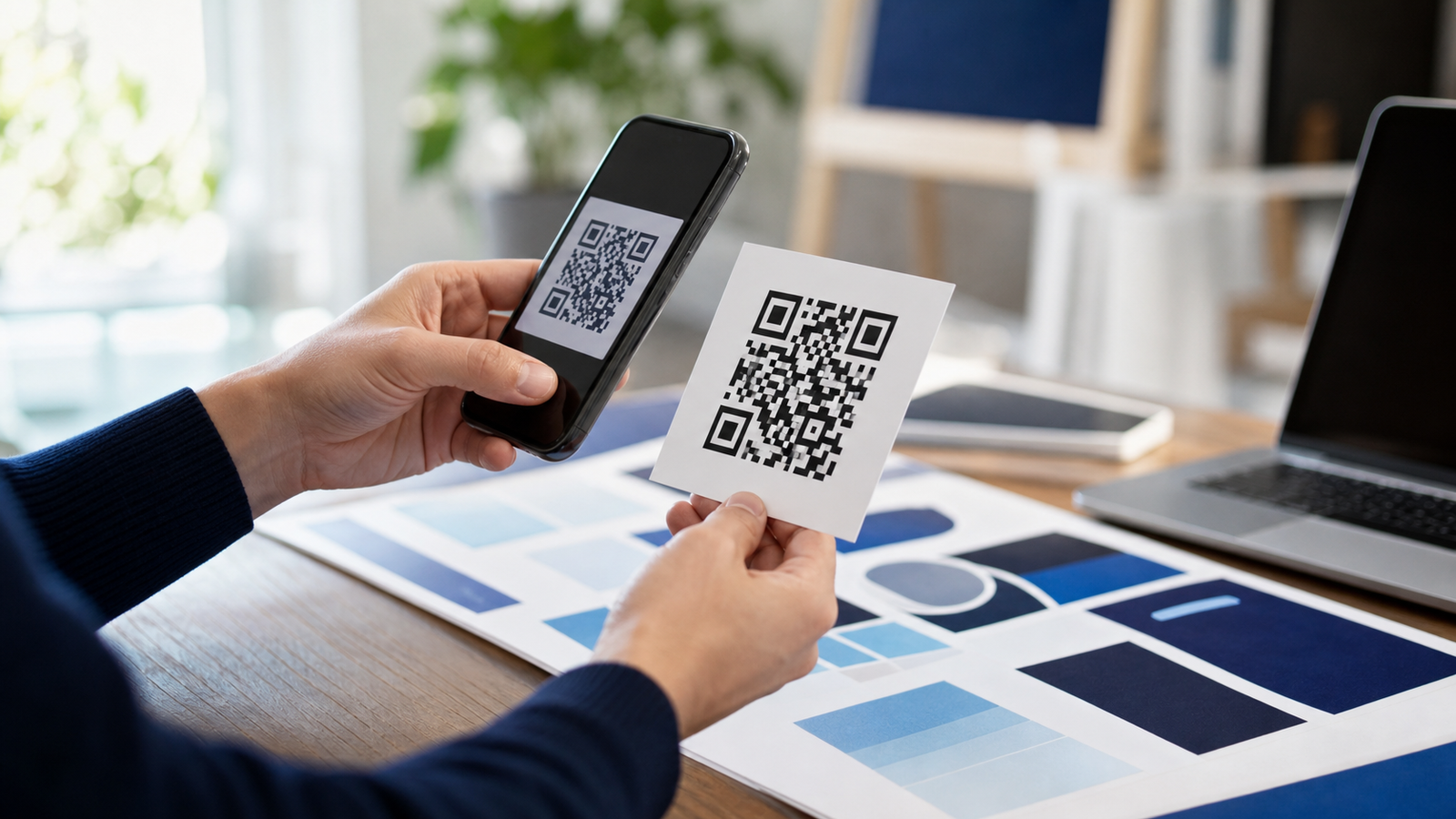
A practical step-by-step guide to creating, customizing and testing a website QR code. The best results come from treating the QR code and the page behind it as one complete experience.
Start with a clear purpose
Decide what should happen after a person scans. Use one focused destination and make sure it works well on a phone. A descriptive call to action such as “Scan to view the menu” is more helpful than displaying an unexplained square.
Build it step by step
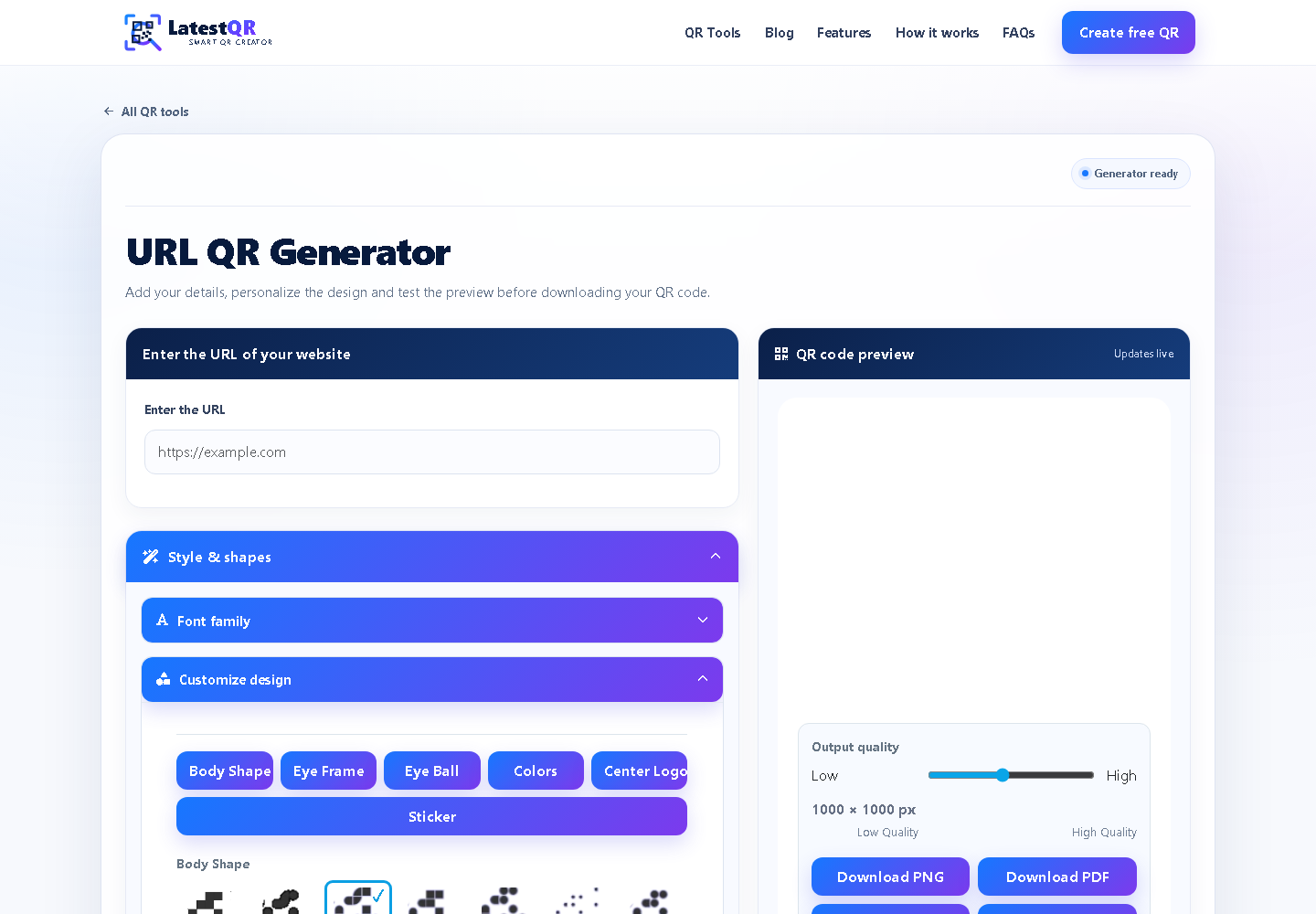
- Choose the correct LatestQR tool and enter accurate information.
- Keep the destination short, useful and mobile friendly.
- Customize the design without reducing contrast around the code.
- Download a high-quality file suitable for its final placement.
- Test the exact printed or published version before sharing it widely.
Design for dependable scans
Use a dark foreground on a light background, preserve the empty quiet zone around all four sides and avoid stretching the image. The farther away people will scan, the larger the code should be. Matte surfaces are generally easier to scan than reflective ones.
Make the destination useful
A successful Guides QR experience loads quickly and immediately delivers what the label promised. Avoid forcing unnecessary sign-ins, remove intrusive pop-ups and place the important action near the top of the page.
Pre-publish checklist
- The destination is correct and uses HTTPS.
- The code has strong contrast and enough clear space.
- The call to action explains the benefit of scanning.
- The landing page is responsive and accessible.
- A non-QR alternative is available when appropriate.
Final takeaway
How to Create a QR Code for a Website does not need to be complicated. Focus on usefulness, test in context and review the destination periodically. A small amount of preparation protects the customer experience and makes every scan more valuable.
A practical scenario
A local service links directly to its booking page instead of its homepage. This small trial keeps the promise beside the code aligned with what appears after scanning.
What can go wrong, and how to recover
Likely problem: A mobile pop-up hides the promised action.
Practical recovery: Open the exact URL on a small phone, remove the interruption and show a short URL fallback.
Record a real test before publishing
Test mobile data, WiFi, Android, iPhone and the final page action. Write down the device, conditions, result and correction instead of relying on memory. Retest the final exported or printed version after every meaningful design or destination change.
Questions people often ask
How often should this QR code be reviewed?
Review it after every destination change and on a recurring schedule while it remains public. Payments, events and safety information deserve more frequent checks.
What if scanning is not possible?
Provide a readable URL, phone number, printed instruction or staff-assisted route that delivers the same essential outcome. A QR code should make access easier, not become the only route.