How to Make a QR Code for a PDF: A Practical Guide
Turn a PDF into a QR code, choose the right hosting method, fix access problems and test the final code before you print it.
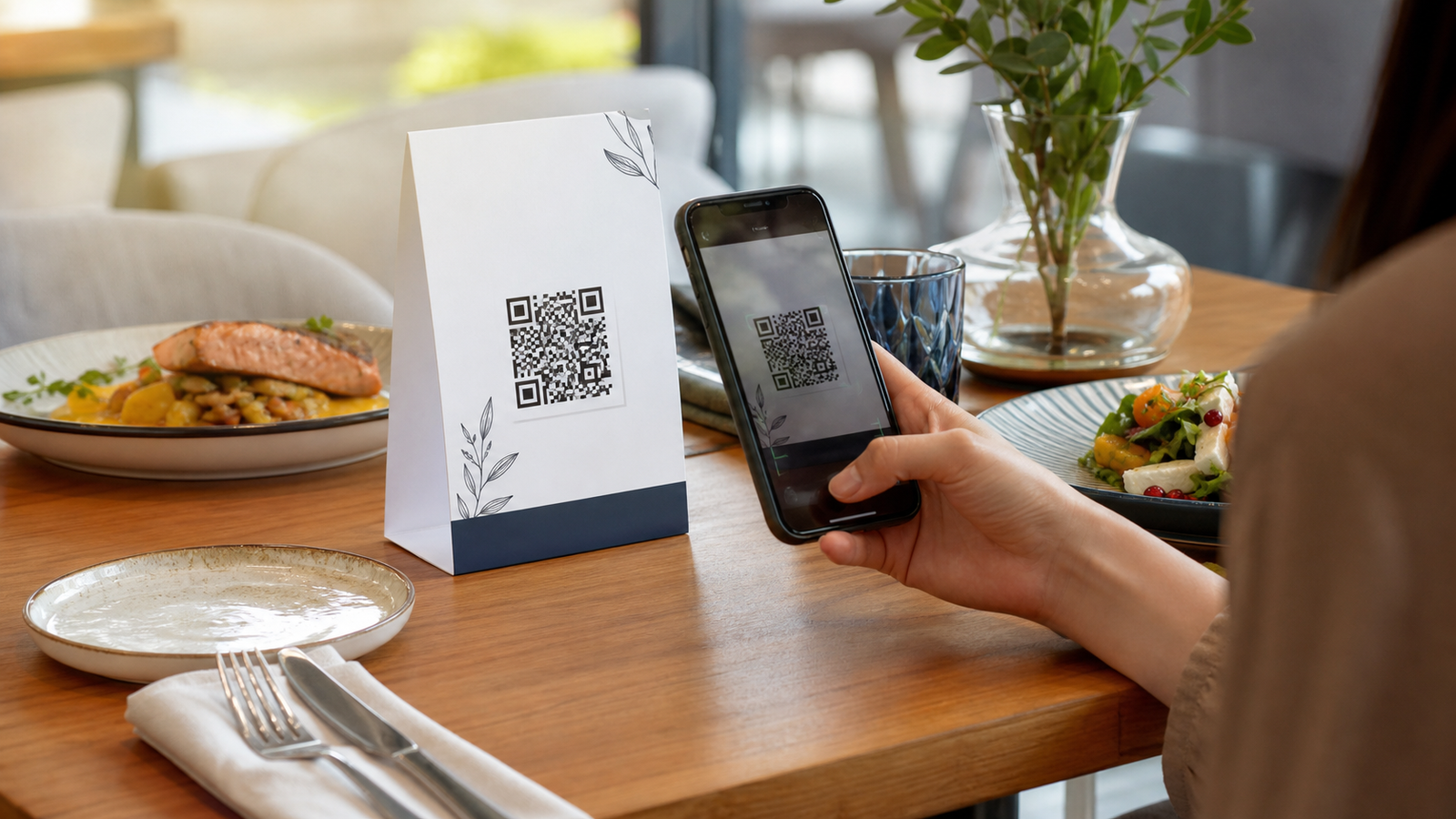
A PDF QR code gives people a quick way to open a menu, brochure, manual, report or event programme on their phone. The QR code itself does not contain the whole PDF. It contains a web address that points to the document, which is why the link, file permissions and mobile experience matter as much as the QR design.
Before you create the QR code
Start with the final version of the document. Give the file a clear name, remove draft comments and check every page on a phone. If the text is tiny, the file is unusually large or the reader has to zoom and pan constantly, fix the PDF before sharing it.
Also decide who should be able to view it. A QR code printed in public is not an access-control system. Anyone who scans it can follow the encoded link, and the link may be shared with other people. Do not use a public PDF QR code for confidential records, private customer information or documents that require controlled access.
How to make a QR code for a PDF
- Open the LatestQR PDF QR Code Generator.
- Choose PDF URL if the file already has a public web address, or choose Upload PDF for a non-sensitive file up to 10 MB.
- Add the link or select the PDF from your device.
- Choose a simple pattern, strong foreground colour and optional logo or frame.
- Select Generate QR code.
- Scan the preview with another phone and verify the document name and contents.
- Download a high-resolution PNG for artwork or a PDF for printing.
Do not skip the scan test. Seeing a QR preview only proves that an image was created; it does not prove that the destination is public, correct or comfortable to use.
Should you paste a PDF URL or upload the file?
| Option | Good choice when | Main trade-off |
|---|---|---|
| PDF on your own website | You manage a menu, manual or brochure and want control over its address | You are responsible for keeping the file and URL online. |
| Public cloud-storage link | Your team already manages documents in a trusted storage service | Sharing settings or owner links can block visitors. |
| Upload through the generator | You need a quick public link for a final, non-sensitive PDF | It is not suitable for private files or a document-management workflow. |
For long-lived printed material, hosting the PDF on a web address you control is usually the more manageable choice. You can monitor the destination, keep the branding consistent and, depending on your hosting setup, replace the document without changing its public address.
How to use a Google Drive or cloud-storage PDF
A link that works for the owner may still fail for everybody else. After changing the sharing setting, copy the viewer link and open it in a private or incognito browser where you are not signed in. The PDF should appear without an access request, organisation login or editing permission.
Avoid copying a link from the browser address bar while editing the file. That address may include account-specific information or open an editor instead of a clean viewer. Use the service’s public sharing option, then test the exact URL that will be encoded.
Can you update the PDF later?
A standard QR code created from a URL is static: the URL inside it does not change after download. Whether you can update the document without reprinting depends on your hosting.
- If you can replace the PDF at the same public URL, the existing QR code can continue to open that address.
- If the new PDF receives a different URL, create and print a new QR code.
- If you delete the file, restrict its permissions or move the website, the old QR code may stop working.
For a restaurant menu or frequently revised price list, a mobile webpage may be easier to maintain than a PDF. In that case, connect the page with the URL QR Generator or use the dedicated Menu QR Generator.
Design a PDF QR code that scans reliably
Decoration should never make the code harder to use. Start with a dark pattern on a light background and keep the clear margin around all four sides. If you add a logo, keep it small and centred. A frame can explain the action, but its text and border must not cover the QR pattern.
Use a specific label such as Scan to view the product manual or Scan for today’s menu. This is more useful than an unexplained code or a generic “Scan me” message. Add the organisation name or domain nearby so the reader can recognise the source.
Choose the right print size
There is no single size that works for every placement. A code scanned from a table can be smaller than one on a wall or exhibition sign. QR density, logo size, print surface, lighting, camera and viewing distance all affect the result.
Print one sample at the final physical size. Test it from the position where a real person will stand or sit, not only from a few centimetres away. For large-format signs, test the complete sign from the expected approach distance before ordering the full batch.
Test the complete experience before printing
- Scan with an Android phone and an iPhone when available.
- Try normal indoor light and the actual venue lighting.
- Turn off Wi-Fi and check how quickly the PDF opens on mobile data.
- Confirm that no account or app installation is required.
- Read several pages on a small screen and check links inside the document.
- Print the artwork at its final size and scan the physical copy.
- Ask someone who did not create the document to test it without instructions.
If the code will stay in use, schedule occasional checks. A perfectly printed QR code can still lead to an error after a file move, expired share link or permission change.
Common PDF QR code problems
The scan opens a request-access page
The PDF is not public. Update the file permission, copy the correct viewer link and test it while signed out before making the QR code again.
The PDF takes too long to load
Compress oversized images, remove unnecessary embedded assets and export an optimised PDF. Keep the text readable after compression. If the document remains very large, consider a mobile webpage with separate downloads.
The QR scans on screen but not after printing
Increase the printed size, restore the clear border, strengthen the contrast and check whether glossy material creates reflections. Export a high-resolution file instead of printing a screenshot.
The code opens an old document
Check whether the new file has a different URL or whether a browser or content-delivery cache still serves the old version. Open the encoded address directly in a private browser and confirm what a new visitor receives.
Useful ways to share a PDF QR code
- Restaurants: a takeaway menu or allergen guide, with printed or staff-assisted access still available.
- Products: setup instructions, care guides and warranty information beside the model name.
- Events: programmes, venue guides or presentation notes that remain useful after the event.
- Offices: public brochures, visitor information and non-confidential forms.
- Education: reading material or worksheets that students are permitted to access publicly.
PDF QR code checklist
- The PDF is final, public and safe to share.
- The exact link works while signed out.
- The document is readable on a small phone.
- The QR has strong contrast and an intact clear margin.
- The printed instruction explains what will open.
- The physical sample scans from the expected distance.
- A person or process is responsible for checking the link later.
Frequently asked questions
Is a PDF stored inside the QR code?
No. The QR code normally stores the URL of the hosted PDF. The phone reads that address and then downloads or displays the document through the internet.
Does a PDF QR code expire?
The static QR pattern has no built-in expiry date, but the document link can stop working. Keep the file public at the same address and test important codes periodically.
Can I make a PDF QR code for free?
Yes. You can use the LatestQR PDF QR Code Generator to add a public link or upload an eligible PDF, customize the code and download it. Always check the destination and printed result yourself.
Can I use a QR code for a private PDF?
A public QR code is not appropriate for confidential information. A restricted document may require the reader to sign in, while a public link can be forwarded. Use an access-controlled document system designed for the sensitivity of the file.
Final takeaway
Making the QR image is the easy part. A useful PDF QR code depends on a public, stable document that opens quickly and reads well on a phone. Choose the hosting method carefully, use a simple high-contrast design, test the actual printed piece and keep responsibility for the destination after publication.
A practical scenario
A restaurant publishes one accessible menu PDF at a stable HTTPS address. This small trial keeps the promise beside the code aligned with what appears after scanning.
What can go wrong, and how to recover
Likely problem: A renamed replacement file leaves printed cards pointing at the old document.
Practical recovery: Keep a permanent public URL and verify access in a private browser.
Record a real test before publishing
Test public permissions, file size, mobile readability and a non-PDF fallback. Write down the device, conditions, result and correction instead of relying on memory. Retest the final exported or printed version after every meaningful design or destination change.
Questions people often ask
How often should this QR code be reviewed?
Review it after every destination change and on a recurring schedule while it remains public. Payments, events and safety information deserve more frequent checks.
What if scanning is not possible?
Provide a readable URL, phone number, printed instruction or staff-assisted route that delivers the same essential outcome. A QR code should make access easier, not become the only route.