Google Maps QR Code for a Business Location: Setup Guide
Create a QR code for the correct Google Maps business location, choose the right link and help visitors reach the correct entrance.
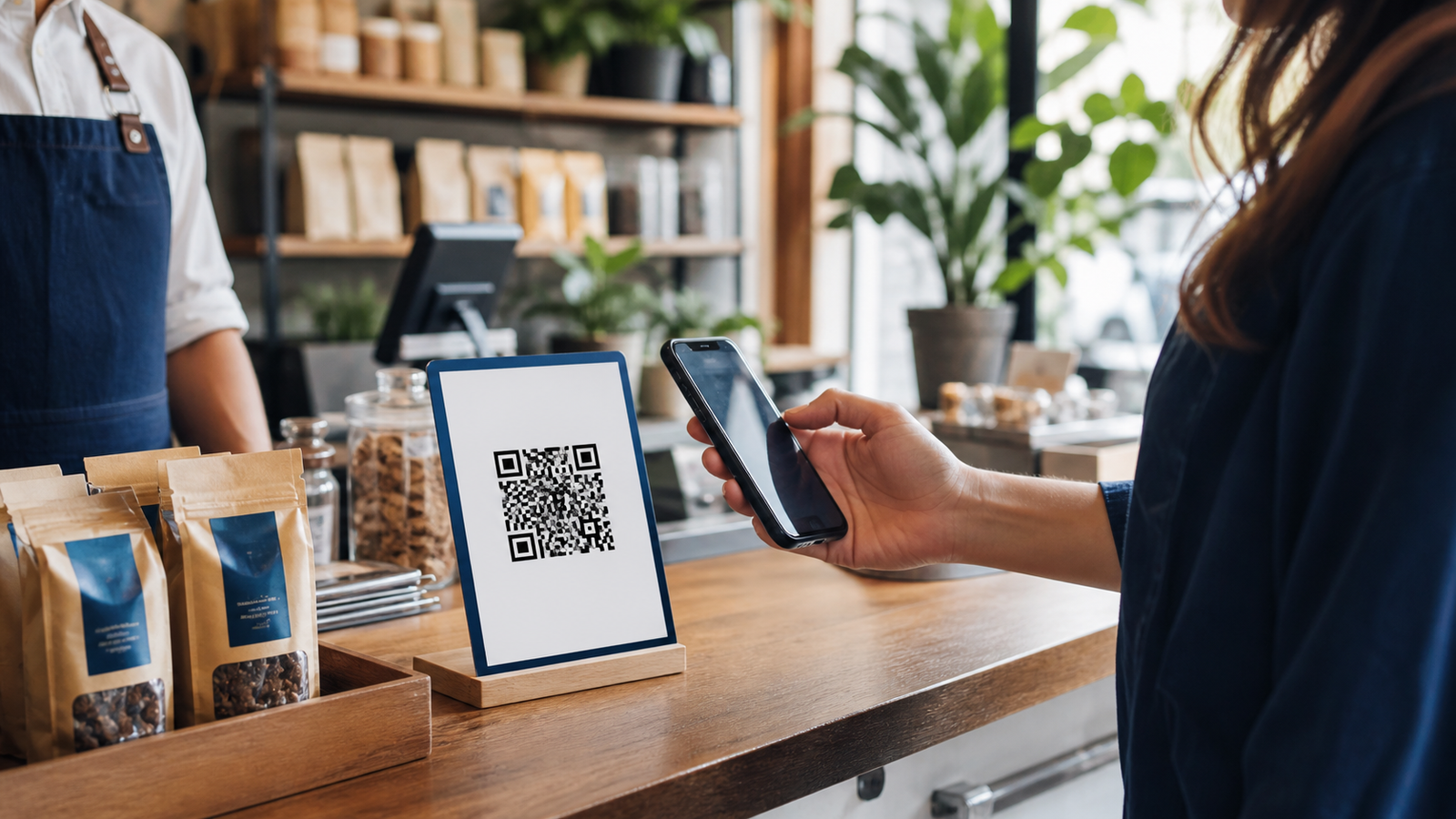
A Google Maps QR code can take a customer from a printed sign, appointment card or invitation to your business location in one scan. The important part is not simply generating the square image. You need to copy the link for the correct place, verify the pin and give visitors enough information to recognise the right branch or entrance.
What does a Google Maps QR code do?
The QR code stores a Google Maps link. After scanning, the visitor can view the place, check the address and start directions from their current location. It does not track the visitor’s live location, choose their travel route for them or correct an inaccurate business listing.
For a shop, clinic, restaurant or office, link to the exact public place listing whenever one exists. A dropped pin can be more useful for a gate, parking area, event entrance or meeting point that does not have its own listing.
How to create a QR code for a Google Maps location
- Open Google Maps and search for the exact business, branch or venue.
- Check the name, street address, postcode and map pin.
- Select Share and copy the public link.
- Open the Google Maps QR Code Generator and paste the link.
- Choose a simple, high-contrast design and generate the code.
- Scan it with another phone and confirm that the intended place opens.
- Download the code, add a clear instruction and test the final printed item.
Choose the right type of map link
| Link type | Use it for | Check carefully |
|---|---|---|
| Business place link | A public shop, restaurant, clinic, hotel or office | Correct branch name, address, hours and listing. |
| Dropped-pin link | A gate, car park, field, delivery point or meeting place | The pin marks the practical arrival point. |
| Directions link | An invitation or journey where the destination must be ready | The destination is fixed but the visitor can choose their start point. |
| Search-results link | Usually avoid it | It may show several similarly named places instead of one destination. |
Verify the location before printing
Business owners often test a link while signed into the account that manages the listing. A customer may see something different. Open the copied link in a private browser or send it to a phone that is not signed into the owner account. Confirm the listing name, map pin, street address and photos.
If a business has several branches, include the branch name and locality beside the QR code. For a large property, state the intended arrival point, such as Visitor entrance on Park Road or Customer parking behind the building. Keep a readable address below the code for people who prefer to type or cannot scan.
What if the Google Maps pin is wrong?
Do not try to solve an inaccurate listing by moving the QR artwork. Correct or report the map information first. Until the public listing is reliable, consider using a verified dropped pin and written arrival instructions. Test navigation from more than one direction because a pin inside a large site may lead drivers to the wrong road or locked gate.
Where should a business place the QR code?
- Appointment cards: place it near the confirmed address and arrival time.
- Event invitations: label it “Scan for venue directions” and add parking information.
- Storefront material: use it on flyers and ads that people see before travelling, not only after they arrive.
- Hotel or venue information: connect to the exact entrance, reception or visitor parking point.
- Delivery instructions: add written access details; do not expect the map pin to explain loading restrictions.
A QR code should support the address, not replace it. Printed material still needs the business name and a readable location so people can recognise the destination before scanning.
Design and print for reliable scanning
Use a dark QR pattern on a light background and keep the clear margin around all four sides. A logo can help recognition, but an oversized logo or decorative pattern can make scanning less consistent. Export a high-resolution image instead of taking a screenshot.
Print one sample at the final size and test it from the normal viewing distance. Check it in the lighting where it will actually be used. Glossy lamination, curved displays and reflections can make a code that worked on a monitor difficult to scan.
Test the complete customer journey
- Scan the physical sample with both Android and iPhone when possible.
- Try it while signed out of Google.
- Confirm the exact branch and destination pin.
- Start directions and check the suggested arrival side.
- Test with mobile data rather than only office Wi-Fi.
- Ask someone unfamiliar with the location whether the instructions are clear.
Repeat the check if the business moves, changes its name, updates its listing or alters an entrance. The static QR code can continue to work while its encoded link remains valid, but the information behind that link can still change.
Common Google Maps QR code problems
The code opens several businesses
You probably copied a search-results link. Open the exact place listing, use its Share option and generate the code again.
The correct business opens but the wrong branch appears
Check the full address and branch name before copying. Add the locality beside the printed code so visitors have a second confirmation.
Directions finish at the wrong entrance
Use a verified dropped pin for the practical arrival point and print short entrance or parking instructions beside it.
The QR code scans on screen but not on the sign
Increase its size, restore the clear margin, improve contrast and test for glare. Use the QR code print-testing guide before ordering replacements.
Google Maps QR code checklist
- The link opens one intended place, not general search results.
- The business name, branch, address and pin are correct.
- Entrance or parking instructions appear where needed.
- The QR design has strong contrast and a clear margin.
- A readable address is printed as an alternative.
- The final physical item has been scan-tested.
- Someone will recheck it after listing or access changes.
Frequently asked questions
Can I create a QR code for a Google Maps location for free?
Yes. Copy the public link for the exact place or dropped pin and paste it into the LatestQR Google Maps QR Code Generator. Test the destination before downloading.
Does a Google Maps QR code expire?
The static QR code has no built-in expiry date. It depends on the encoded map link continuing to work and the location information remaining accurate.
Can the QR code open directions from the customer’s location?
A directions link can open the chosen destination while the visitor’s device supplies their starting point, subject to their location settings and map app.
Should I use my business listing or a dropped pin?
Use a verified business listing for most public businesses. Use a dropped pin when a specific gate, parking area or meeting point is more useful than the general property.
Final takeaway
A useful location QR code sends customers to the right place and gives them enough context to arrive confidently. Copy the exact public link, verify it as a customer, add a written address and test the printed code in realistic conditions.
A practical scenario
A clinic links to its exact listing and prints the street address below. This small trial keeps the promise beside the code aligned with what appears after scanning.
What can go wrong, and how to recover
Likely problem: The pin points to the wrong entrance.
Practical recovery: Confirm it on another phone and add parking or reception instructions.
Record a real test before publishing
Test different map apps, pin accuracy, mobile data and the written address. Write down the device, conditions, result and correction instead of relying on memory. Retest the final exported or printed version after every meaningful design or destination change.
Questions people often ask
How often should this QR code be reviewed?
Review it after every destination change and on a recurring schedule while it remains public. Payments, events and safety information deserve more frequent checks.
What if scanning is not possible?
Provide a readable URL, phone number, printed instruction or staff-assisted route that delivers the same essential outcome. A QR code should make access easier, not become the only route.